Adding links to the home page left panel
This guide will walk you through adding link to the left panel (opens in a new tab) on the O3 home page. The O3 home page left panel contains links to various apps. Clicking on a link will typically navigate you to the landing screen of the app.
Example: Adding a link for the Patient Lists app
This guide will walk you through adding a link to the Patient Lists (opens in a new tab) app, which is a frontend module that's part of the O3 Patient Management monorepo. The Patient Lists app handles the creation and management of patient lists. This app has a landing screen that displays a tab view of all the lists that have been created. The landing screen also contains a button that allows you to create a new list. Clicking on a list will navigate you to the list details screen.
Below is a screenshot of the Patient Lists app landing screen:
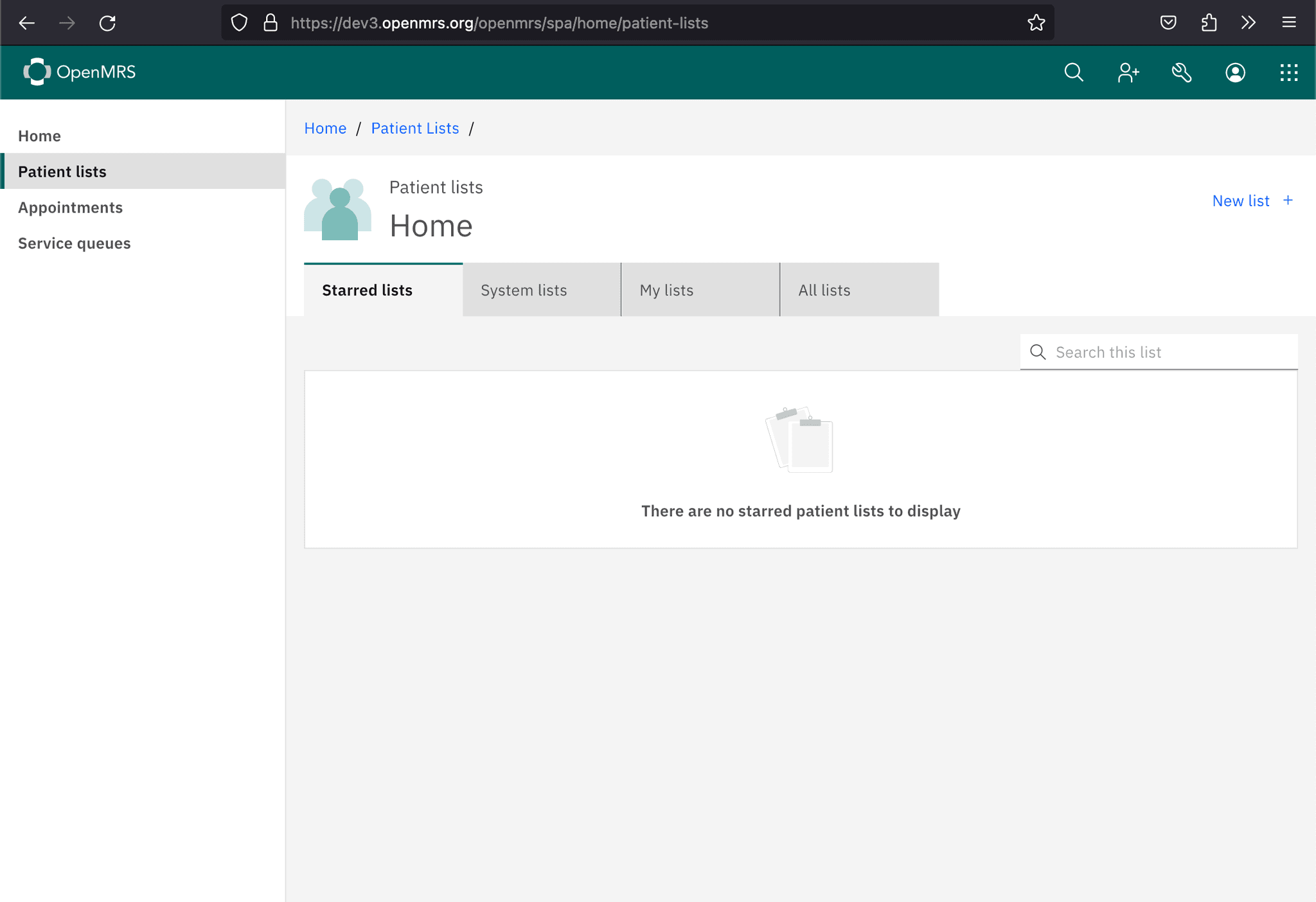
To achieve this, we'll need to follow these steps:
Step 1: Set up routing for the Patient Lists app
We'll begin by making sure that the Patient Lists app is properly set up to handle routing. Its Root component should look like this:
import React from "react";
import { BrowserRouter, Route, Routes } from "react-router-dom";
import PatientListList from "./patient-list-list/patient-list-list.component";
import PatientListDetailComponent from "./patient-list-detail/patient-list-detail.component";

const RootComponent: React.FC = () => {
  const basename = window.getOpenmrsSpaBase() + "home/patient-lists";

  return (
    <BrowserRouter basename={basename}>
      <Routes>
        <Route path="/" element={<PatientListList />} />
        <Route path="/:patientListUuid" element={<PatientListDetailComponent />} />
      </Routes>
    </BrowserRouter>
  );
};

export default RootComponent;
This BrowserRouter configuration will allow us to navigate to the Patient Lists app landing screen at home/patient-lists. It will also allow us to navigate to the list details screen at home/patient-lists/:patientListUuid.
Step 2: Add a Patient lists link to the left panel
We'll begin by creating a dashboard metadata file and a helper function to create the dashboard link. First, create a dashboard.meta.ts file:
export const dashboardMeta = {
  path: 'patient-lists',
  slot: 'patient-lists-dashboard-slot',
  title: 'Patient lists',
  basePath: `${window.spaBase}/home`,
} as const;
Next, create a createDashboardLink.tsx file:
import React from 'react';
import { BrowserRouter } from 'react-router-dom';
import { DashboardExtension, type DashboardExtensionProps, type IconId } from '@openmrs/esm-framework';

export const createDashboardLink = (config: Omit<DashboardExtensionProps, 'icon'> & { icon?: IconId }) => () => (
  <BrowserRouter>
    <DashboardExtension path={config.path} title={config.title} basePath={config.basePath} icon={config.icon} />
  </BrowserRouter>
);Note: The icon property is optional. If provided, it should be a valid Carbon icon name (e.g., "Calendar", "User", "List"). The icon will be displayed next to the link text in the left panel.
Now, add a named export to the Patient Lists app index.ts file:
import { getSyncLifecycle, getAsyncLifecycle } from "@openmrs/esm-framework";
import { createDashboardLink } from "./createDashboardLink";
import { dashboardMeta } from "./dashboard.meta";

const moduleName = '@openmrs/esm-patient-list-management-app';

const options = {
  featureName: 'patient list',
  moduleName,
};

// Use getAsyncLifecycle for code splitting in production
export const root = getAsyncLifecycle(() => import('./root.component'), options);

// Dashboard links typically use getSyncLifecycle since they're lightweight
export const patientListDashboardLink = getSyncLifecycle(createDashboardLink(dashboardMeta), options);Note: In production apps, the root component typically uses getAsyncLifecycle for code splitting and better performance. The dashboard link uses getSyncLifecycle since it's a lightweight component. The guide shows a simplified example; your actual index.ts may also include other exports, startupApp() function, and importTranslation setup.
Step 3: Wire up the Patient lists link extension to the home page left panel
Next, we'll need to wire up the Patient lists link extension to the left panel. To do this, we'll need to add the following extension definition to the Patient Lists app routes.json file:
{
  "$schema": "https://json.openmrs.org/routes.schema.json",
  "backendDependencies": {
    "webservices.rest": "^2.2.0"
  },
  "extensions": [
    {
      "name": "patient-lists-dashboard-link",
      "component": "patientListDashboardLink",
      "slot": "homepage-dashboard-slot",
      "meta": {
        "name": "patient-lists",
        "slot": "patient-lists-dashboard-slot",
        "title": "Patient lists"
      }
    },
    {
      "name": "patient-lists-dashboard",
      "component": "root",
      "slot": "patient-lists-dashboard-slot"
    }
    // ...
  ]
}
Some things to note:
- The
componentproperty is set topatientListDashboardLink, which is the named export that we defined in the previous step. - The
nameproperty is set topatient-lists-dashboard-link, which is the name of the extension. - The
slotproperty is set tohomepage-dashboard-slot, which is the name of the slot that we want to add the extension to. This slot is where the links that are displayed on the left panel of the O3 home page are rendered. - The
metaproperty contains the dashboard configuration:- The
nameproperty is set topatient-lists, which is the path segment used in the URL. - The
slotproperty is set topatient-lists-dashboard-slot, which is the name of the slot where the Patient Lists app dashboard content will be rendered. - The
titleproperty is set toPatient lists, which is the display text for the link.
- The
The second extension definition registers the root component to render in the patient-lists-dashboard-slot when the Patient Lists app is active.
Step 4: Profit!
That's it! You should now see a Patient lists link on the left panel of the O3 home page. Clicking on this link should navigate you to the Patient Lists app landing screen.